Connect Trae to Moyi API
1. Connect to Moyi API
If Trae is already installed, add Moyi API:
- Open Trae and go to Settings -> Models.
- Click Add model and choose custom configuration in the dialog.
- Fill in the custom configuration form:
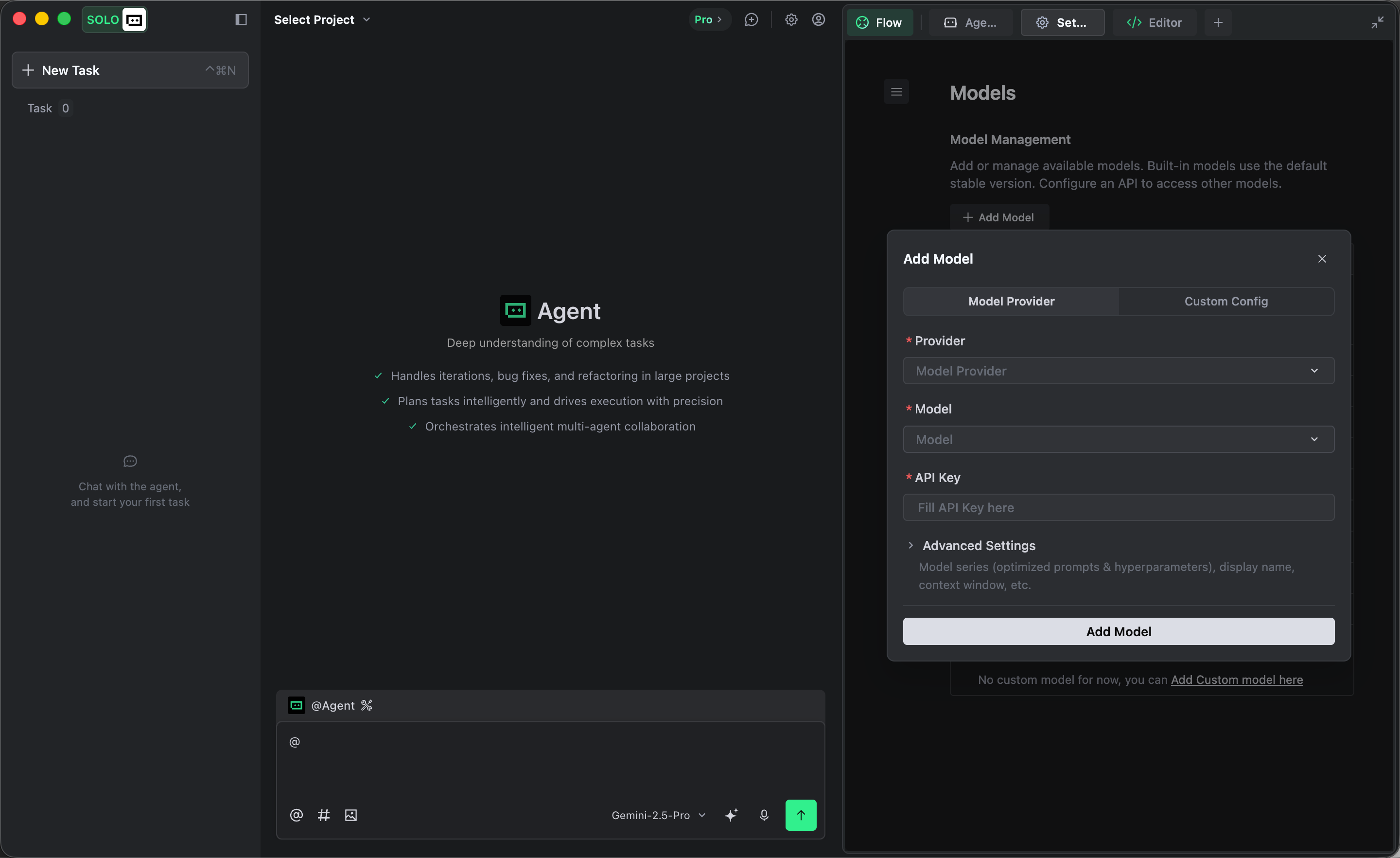
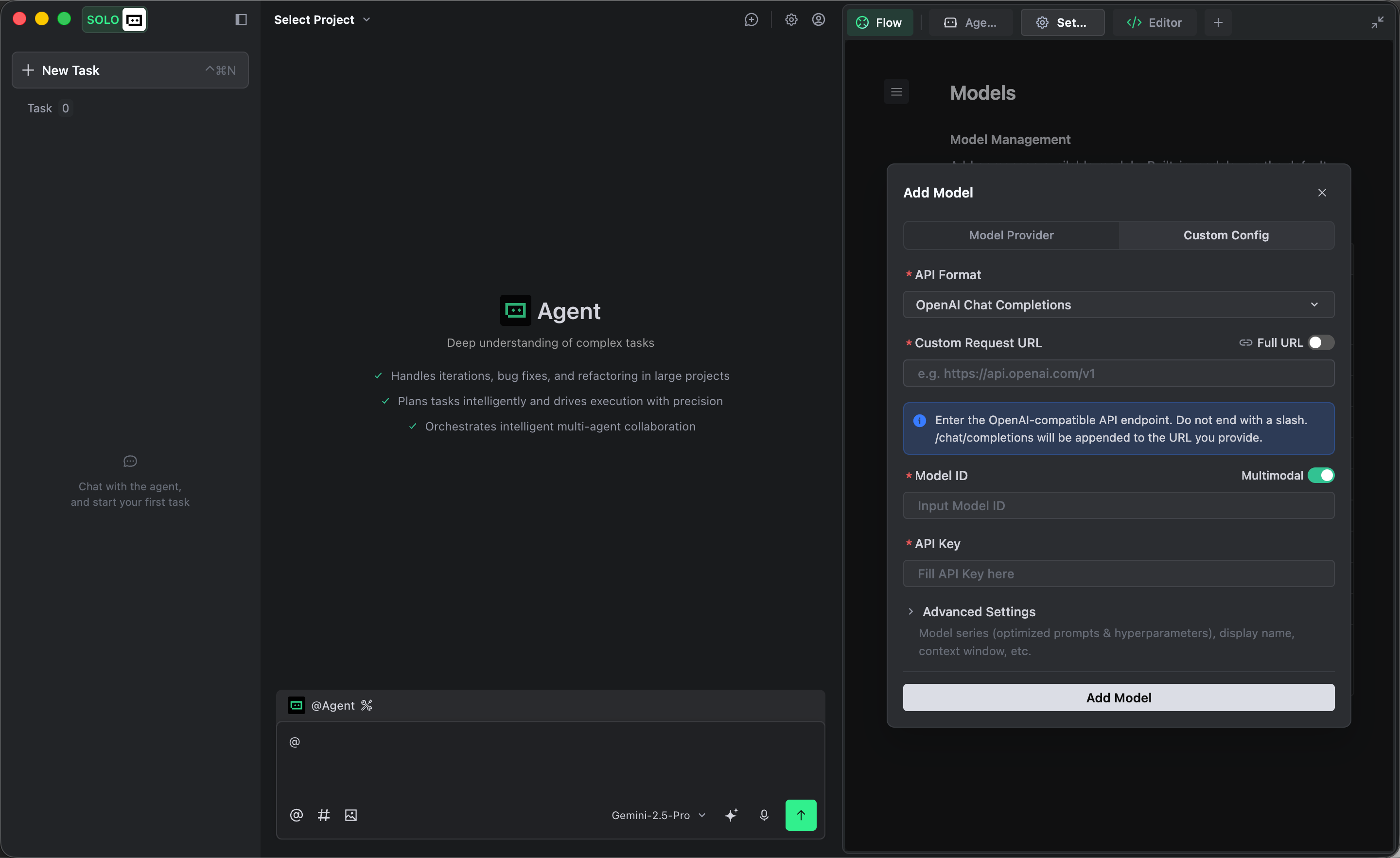
- API format: choose the compatible format that matches the model family you want to use:
| Model families | API format | Request URL with Full URL turned off |
|---|---|---|
| GPT, Gemini, DeepSeek, GLM, and Grok | OpenAI Chat Completions | https://api.moyiapi.com/v1 |
| Claude | Anthropic Messages | https://api.moyiapi.com |
- API key: paste the key you created in the Moyi API dashboard
- Keep other settings at their defaults
- Add the model IDs you want to use:
GPT6
gpt-6-astragpt-5.6-solgpt-5.6-terragpt-5.6-lunagpt-5.5gpt-5.4
Claude8
claude-opus-5claude-fable-5claude-sonnet-5claude-opus-4-8claude-opus-4-7claude-opus-4-6claude-sonnet-4-6claude-haiku-4-5
Gemini6
gemini-3.8-flashgemini-3.7-flashgemini-3.6-flashgemini-3.5-flash-litegemini-3.1-pro-previewgemini-3.1-flash-lite-preview
DeepSeek4
deepseek-flashdeepseek-v4-flash-vision-expdeepseek-v4-prodeepseek-v4-flash
GLM3
glm-5.3-flashglm-5.3glm-5.2
Grok1
grok-4.6
- Click Add model to save. Trae will verify your API key. Once verification succeeds, the model appears in the list.
Select the model you added in the chat box and start using it.
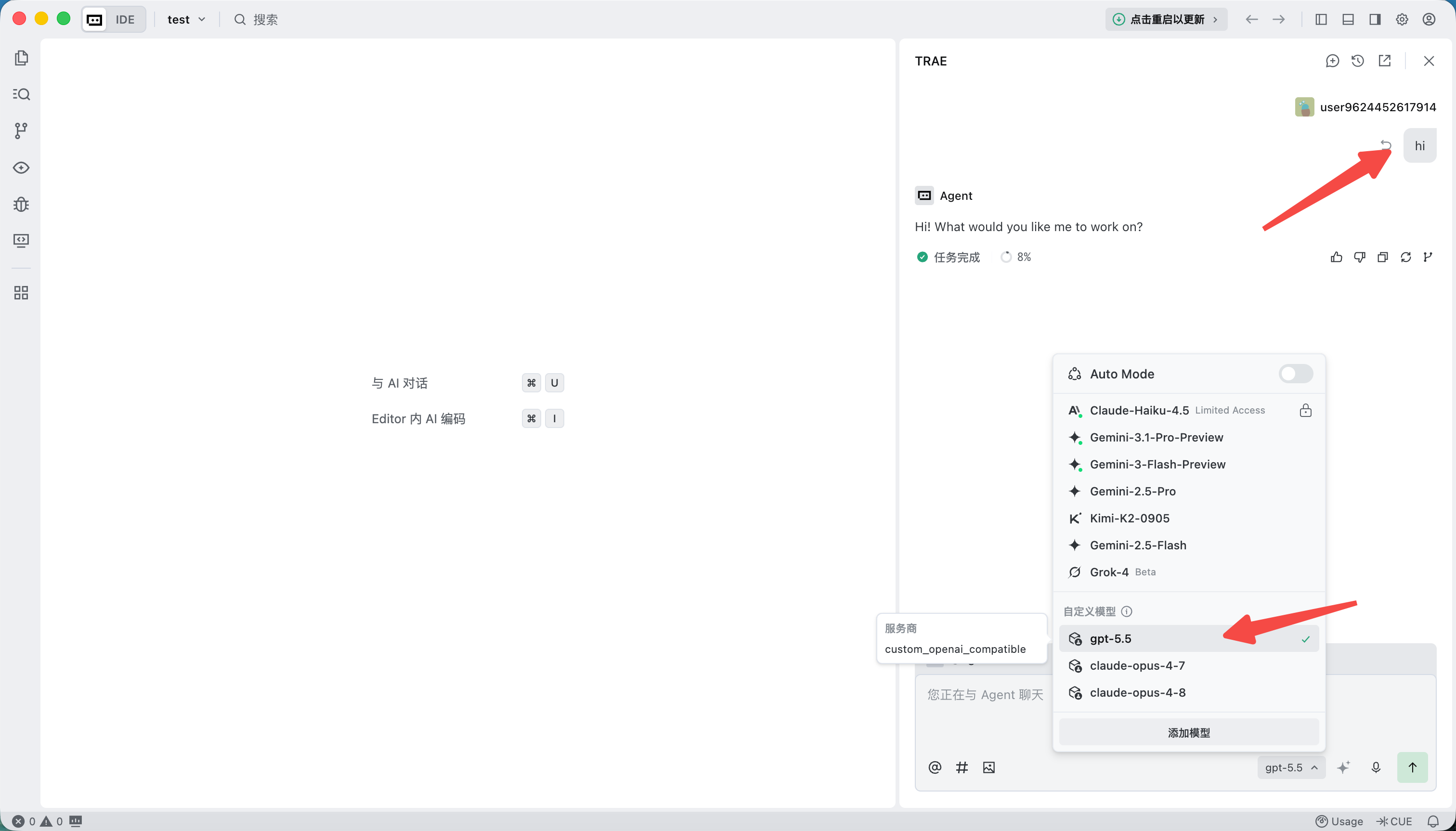
If the model does not work, fully quit Trae and open it again.
Note: Trae adds extra fields to protect its own models. This may cause some third-party models to fail. The error may look like this:

2. Install Trae from scratch
Install or upgrade from the Trae download page, then follow the first section to configure Moyi API.