Connect Codex CLI to Moyi API
Codex CLI is OpenAI's terminal-based AI coding assistant. Install it first (section 1), then connect it to Moyi API (section 2). If Codex is already installed, skip straight to section 2.
1. Install Codex
- Codex requires Node.js 22 or later. Install it from the official installer or via Homebrew (
brew install node).
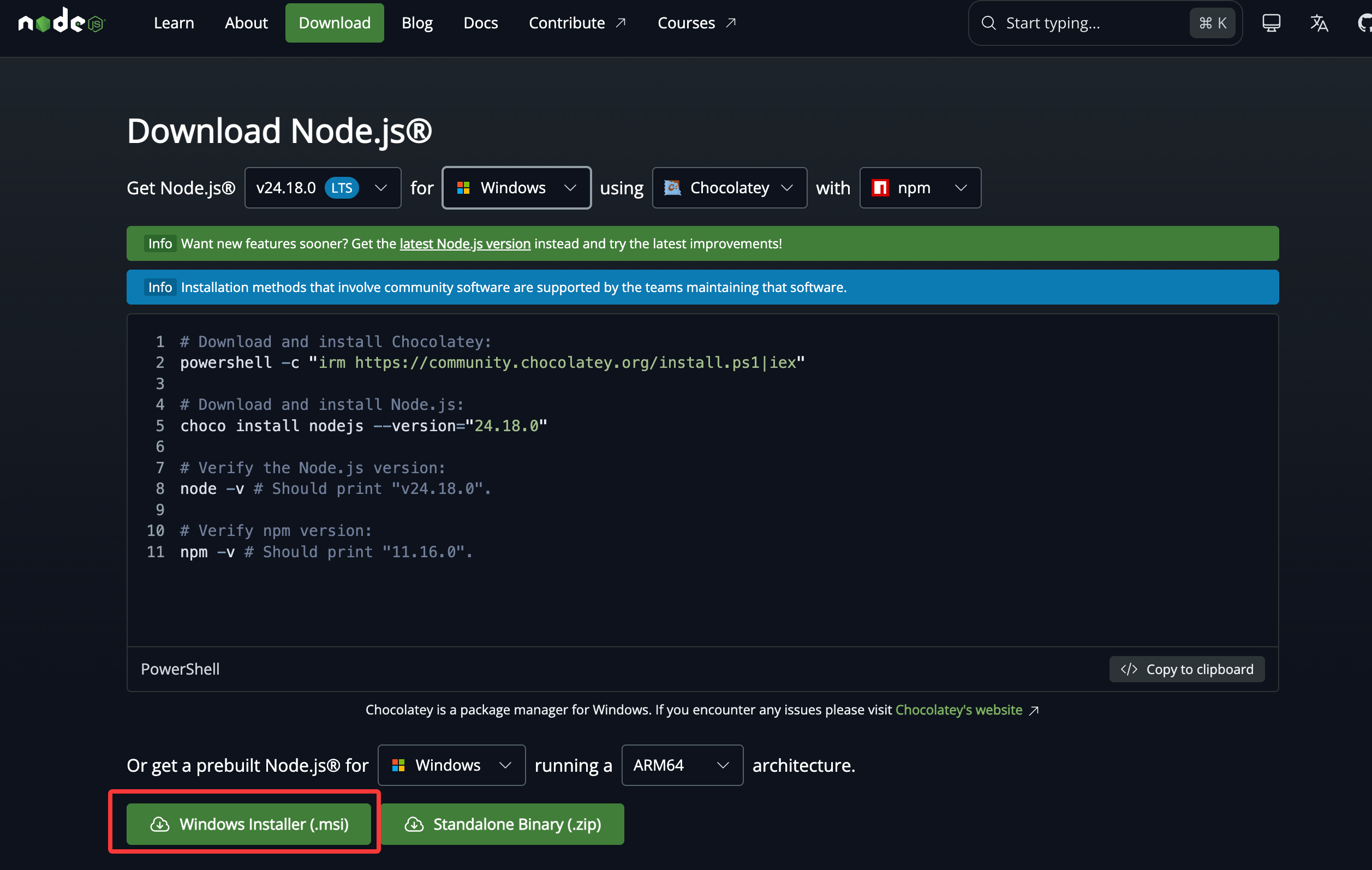
- macOS users can also install Codex with Homebrew:
brew install codex. - In your terminal, run:
npm install -g @openai/codex
- After installation, check the version:
codex --version
2. Connect to Moyi API
Configure the provider
macOS / Linux
Open a terminal, paste the full block below, and press Enter:
mkdir -p ~/.codex && cat > ~/.codex/config.toml <<'EOF'
model_provider = "moyiapi"
model = "gpt-5.6-sol"
model_reasoning_effort = "high"
[model_providers.moyiapi]
name = "Moyi API"
base_url = "https://api.moyiapi.com/v1"
env_key = "OPENAI_API_KEY"
wire_api = "responses"
EOF
Windows
Open PowerShell and run:
New-Item -ItemType Directory -Force -Path "$HOME\.codex" | Out-Null
@'
model_provider = "moyiapi"
model = "gpt-5.6-sol"
model_reasoning_effort = "high"

[model_providers.moyiapi]
name = "Moyi API"
base_url = "https://api.moyiapi.com/v1"
env_key = "OPENAI_API_KEY"
wire_api = "responses"
'@ | Set-Content -Path "$HOME\.codex\config.toml" -Encoding UTF8
Set the API key
Replace <your-Moyi API-key> with the API key you created in the Moyi API dashboard.
macOS
echo 'export OPENAI_API_KEY="<your-Moyi API-key>"' >> ~/.zshrc
source ~/.zshrc
Linux
echo 'export OPENAI_API_KEY="<your-Moyi API-key>"' >> ~/.bashrc
source ~/.bashrc
Windows
[Environment]::SetEnvironmentVariable("OPENAI_API_KEY", "<your-Moyi API-key>", "User")
Windows users: after running the command above, close the current PowerShell window and open a new one.
After both steps, run codex in the terminal. It will use Moyi API.
3. Enable Fast mode (optional)
Fast mode makes GPT-series models respond faster (gpt-5.6-sol runs up to 2.5x faster than Standard), billed at 2x the standard rate.
To enable it for the current session, type this inside Codex:
/fast
(/fast is a toggle — type it again to turn it off.)
To enable it permanently, add this line at the top of ~/.codex/config.toml:
service_tier = "fast"
All requests under this config will then use Fast mode.