模驿API接入 Claude 客户端
Claude 客户端(Claude Desktop)是 Anthropic 官方推出的桌面端应用,内置 Claude Code 编程能力。通过 CC Switch 即可将其接入 模驿API。
使用 CC Switch 接入
CC Switch 是一个图形界面工具,用来管理和切换 Claude 客户端的接入地址与密钥,一键切换。
安装 Claude 客户端和 CC Switch
本节为安装教程。如果您已安装 Claude 客户端和 CC Switch,接入 模驿API 请直接看下一节。
安装 Claude 客户端
- 到 Claude 官网 下载对应系统的 Claude 客户端并安装。
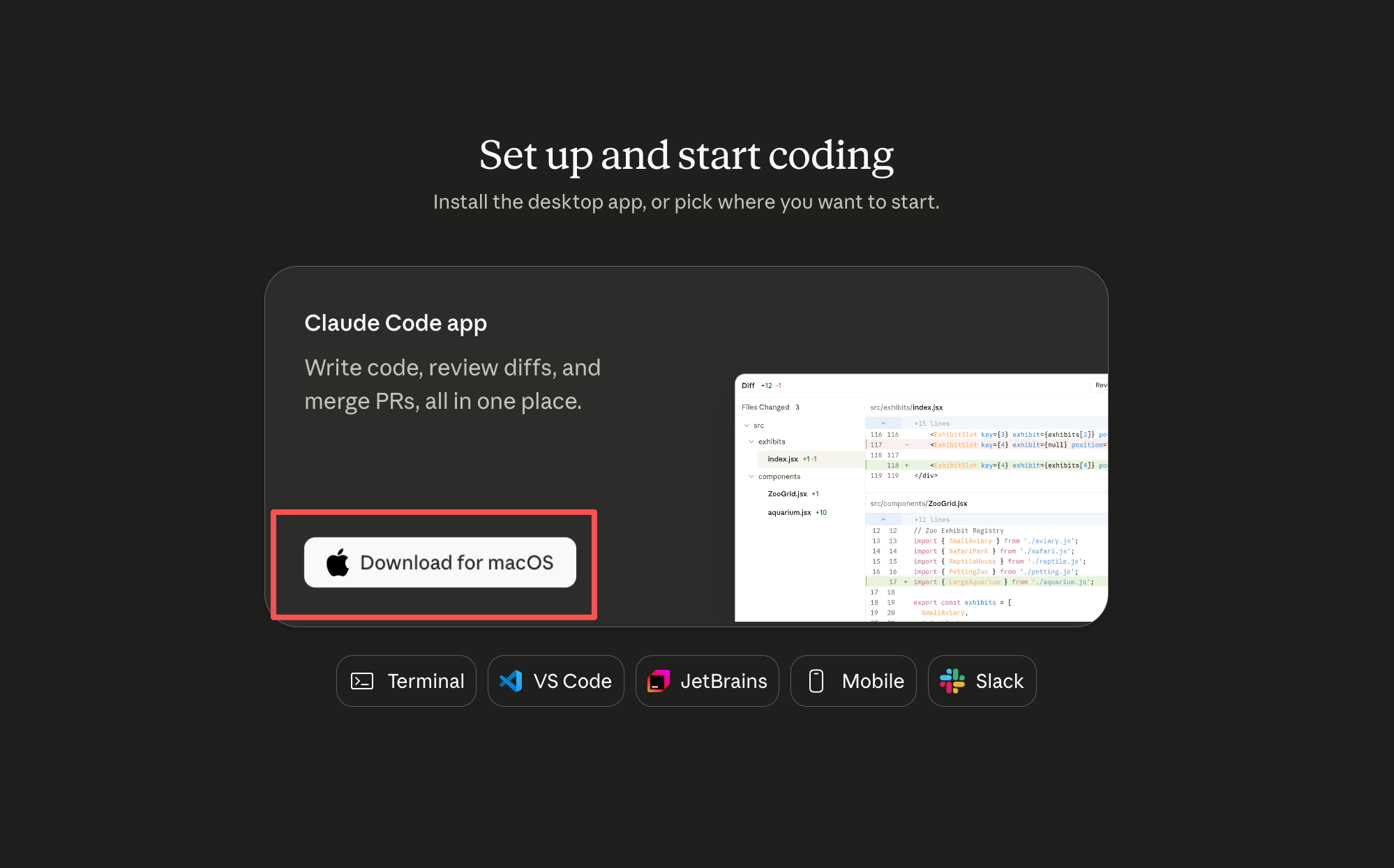
安装 CC Switch
请安装 v3.16.5 及以上版本。macOS 用户(推荐)通过 Homebrew 安装:
brew install --cask cc-switch
或访问 CC Switch Releases 下载对应平台安装包:
- macOS:
.dmg/.zip - Windows:
.msi安装版 / Portable.zip绿色版 - Linux:
.deb/.rpm/.AppImage
首次打开如被 macOS Gatekeeper 拦截,到「系统设置 → 隐私与安全性」点 「仍要打开」。
接入 模驿API
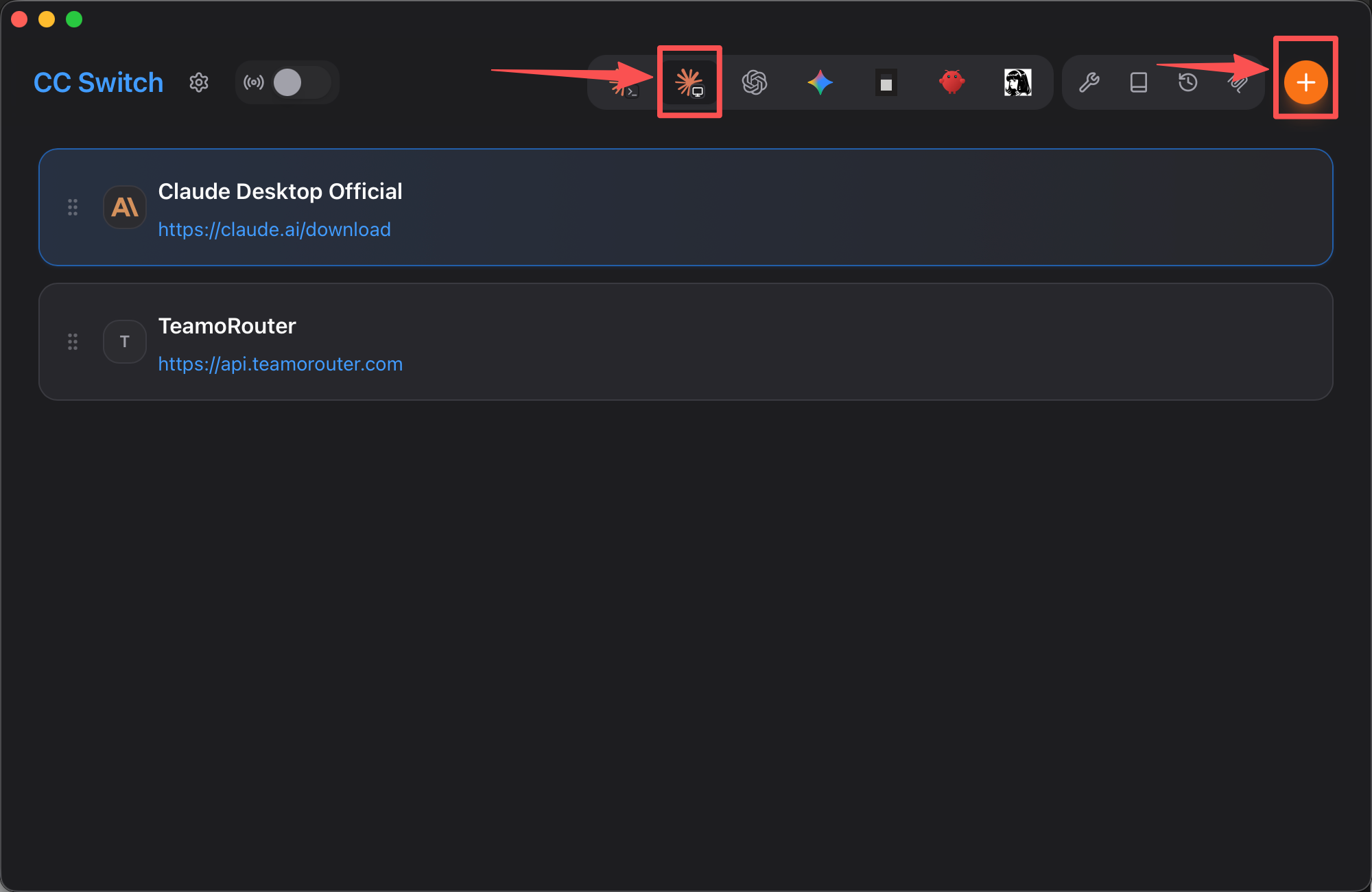
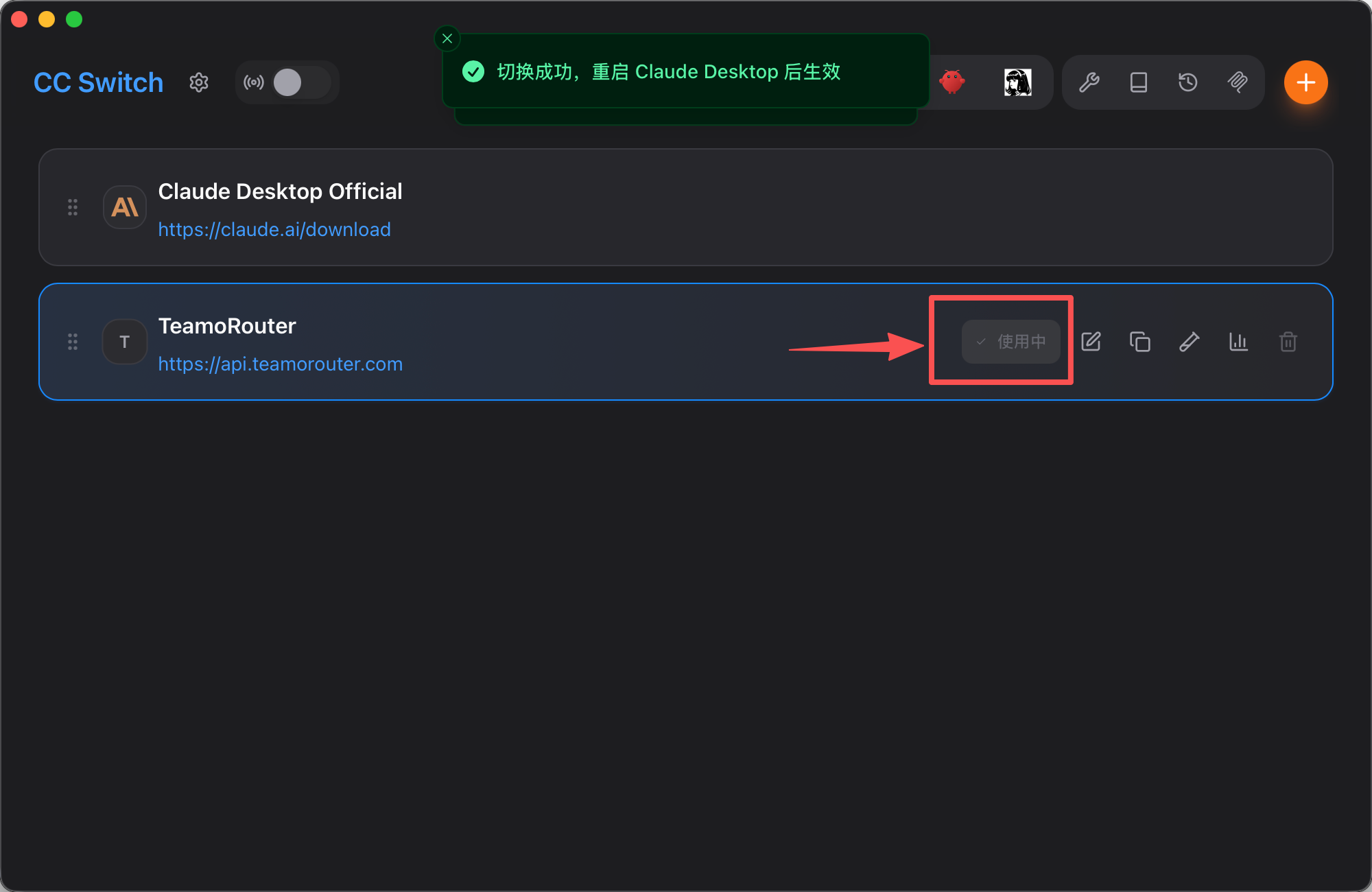
在 CC Switch 的 Claude Desktop 标签中,点击右上角【橙色加号】按钮。
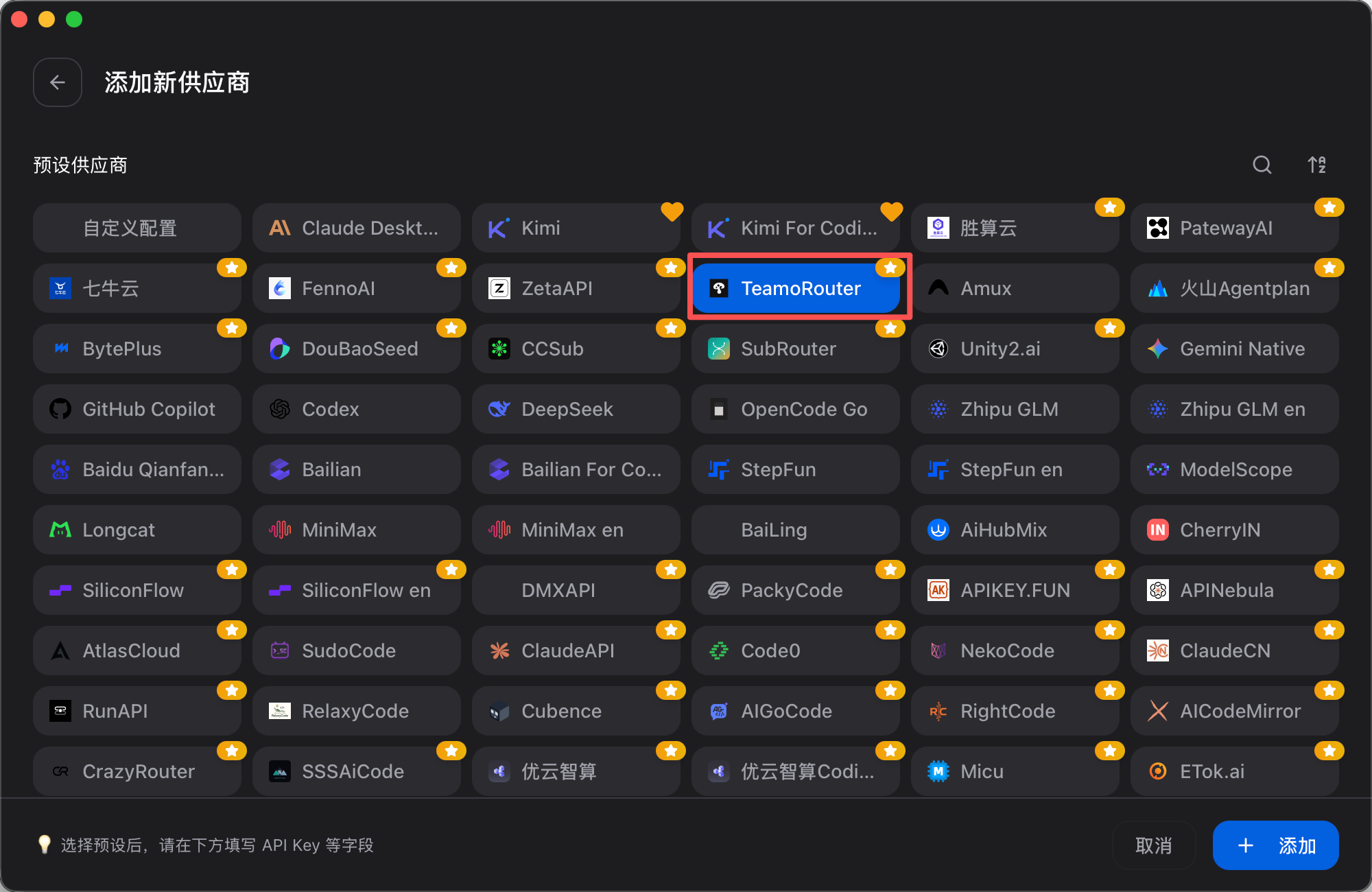
- 在 「预设供应商中」 找到 「模驿API」(或直接搜索"Moyi API")。
- 填入你在 模驿API 控制台 获取的 API Key。
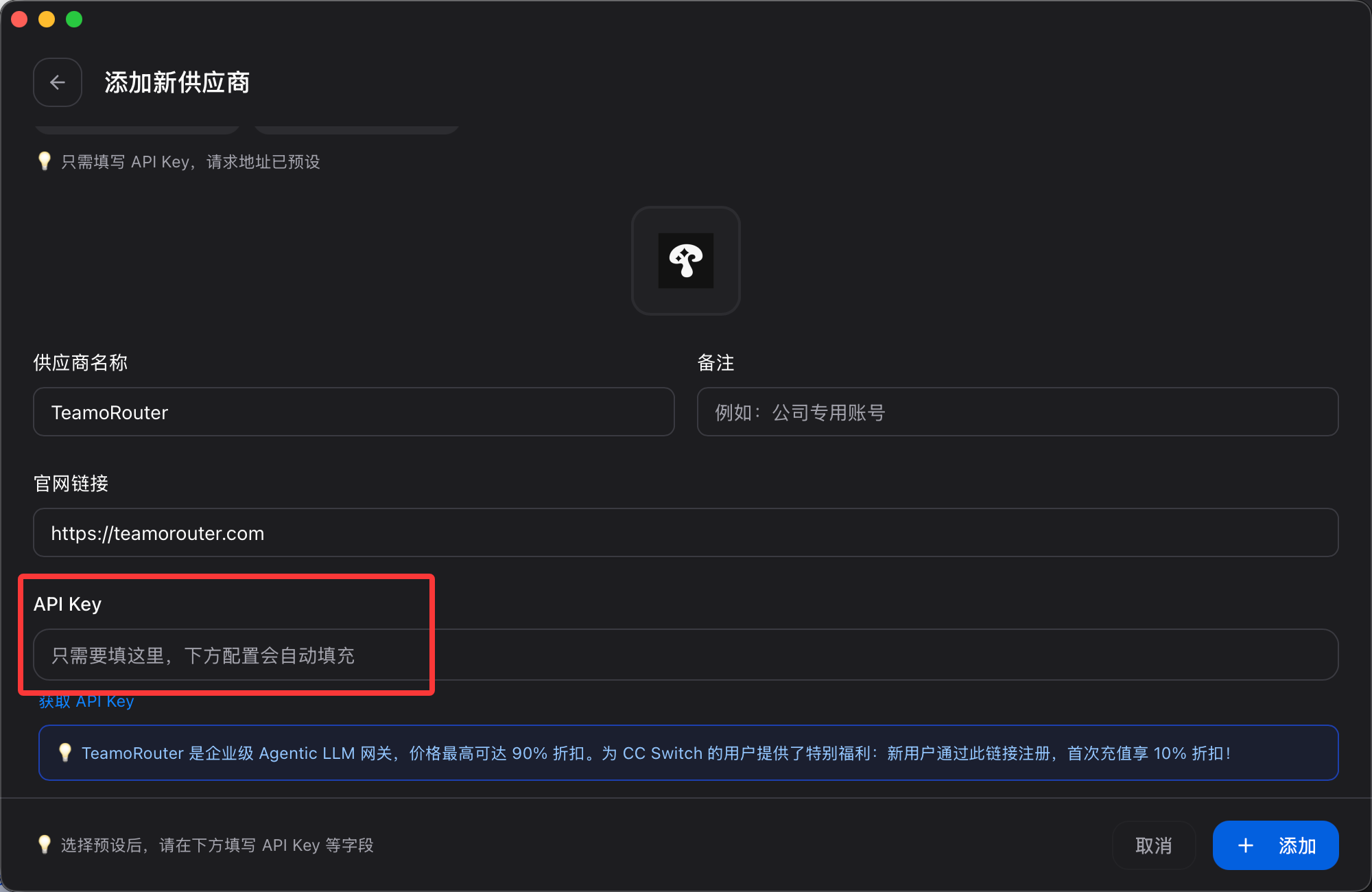
- 完成后,点击右下角保存。
在主页启用 模驿API,打开 Claude 客户端即可生效。
如果已经打开了 Claude 客户端,需要重启一次生效。
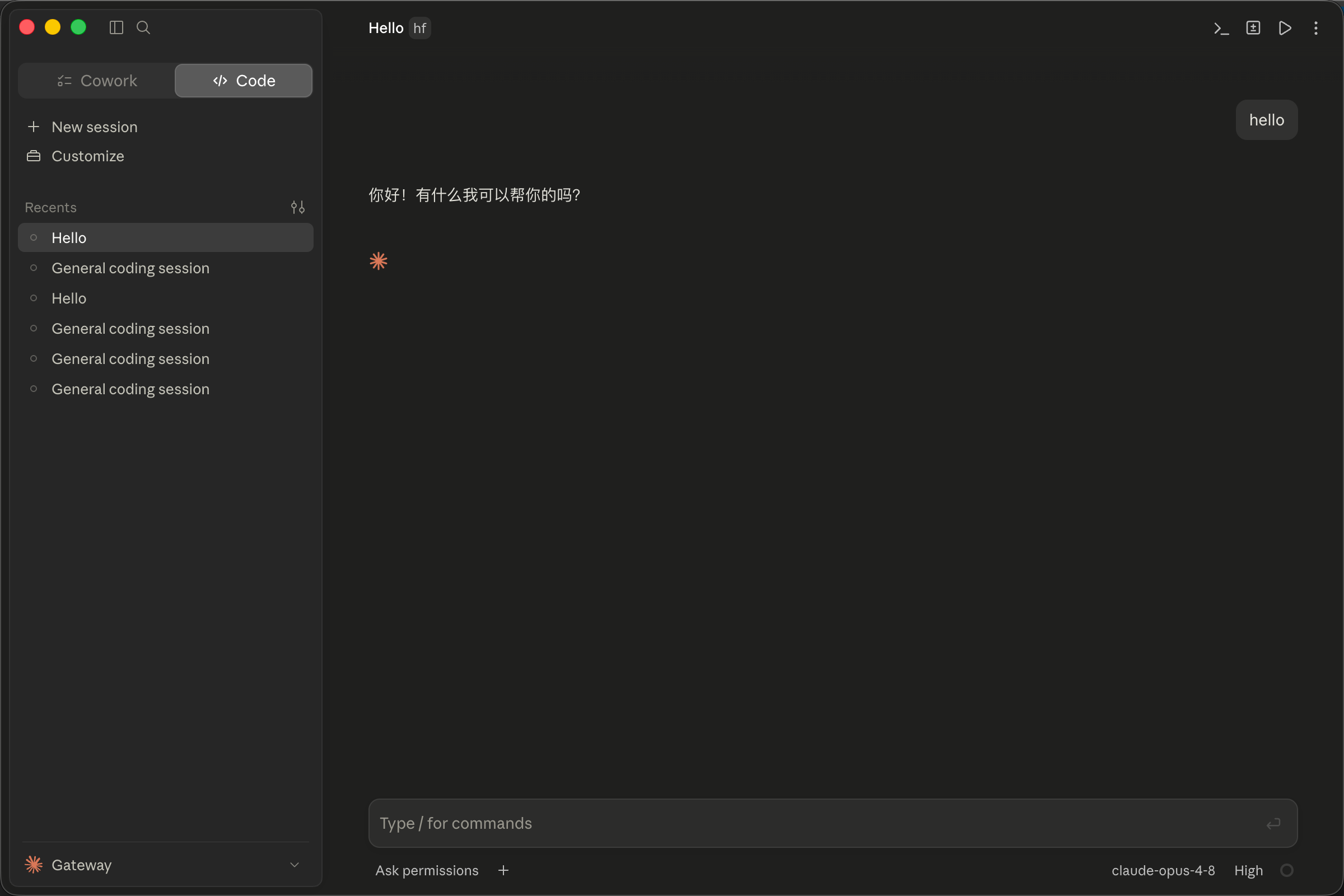
打开 Claude 客户端,即可开始使用了。
您可以在模驿API的控制台,看到每条请求的用量情况。
常见问题
Windows 系统用户在使用 Claude 客户端时,如遇以下报错:
Virtual Machine Platform not available
Claude's workspace requires the Virtual Machine Platform on Windows. Enable this feature, then restart.
请按照下述步骤完成操作,即可正常使用:
Win + R输入optionalfeatures回车;- 找到并勾选「虚拟机平台」(英文叫 Virtual Machine Platform),确定;
- 重启电脑,再打开 Claude 客户端,即可使用。